

MetaTrader 4 Tutorial: The Ultimate Beginner’s Guide
⏱️ Estimated Reading Time: 15 minutes
📝 Summary: MetaTrader 4 (MT4) remains the industry standard for Forex trading. This step-by-step guide covers installation, interface navigation, opening trades, and using advanced tools like indicators and drawing objects.
Welcome to the MetaTrader 4 tutorial. At present, this is the most widely used platform for Forex trading globally. Most brokers offer this platform, the only difference being the customization with their specific logo and server configurations.
Table of Contents
1. Installation & Login
To start, download MetaTrader 4 from your broker’s website. You will typically receive an email with your login ID, password, and server details.
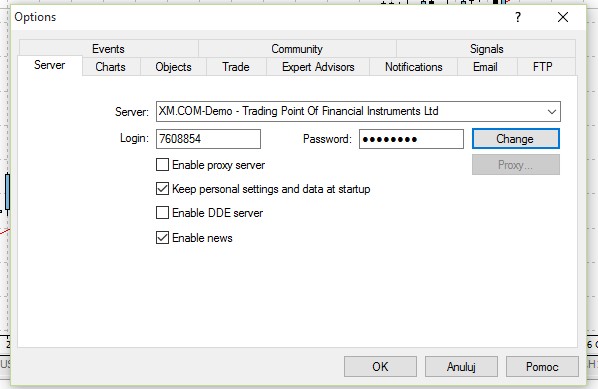
After installation, go to File → Login. Enter your credentials and select the correct server (Demo or Live). It is highly recommended to change your password immediately via Tools → Options → Server. You can set a “Master Password” for full access or an “Investor Password” for read-only access.
2. The Main Screen
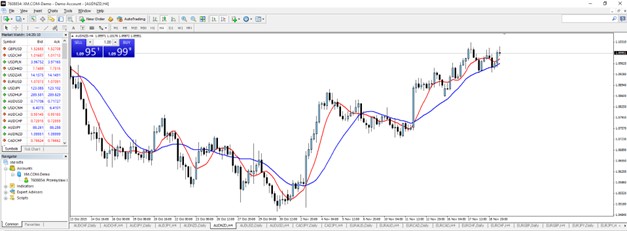
Upon launching the platform, you will see the main workspace. It consists of the Chart Window in the center, the Market Watch and Navigator on the left, and the Terminal at the bottom. This layout is fully customizable.
3. Understanding Charts
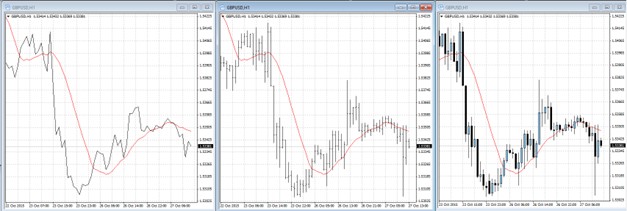
Charts are the heart of technical analysis. MT4 offers three main types:
- Line Chart: Connects closing prices.
- Bar Chart: Shows Open, High, Low, Close (OHLC).
- Candlestick Chart: The most popular format for analyzing price action.
You can also change the Timeframe from M1 (1 minute) up to MN (Monthly) using the toolbar buttons.
4. Market Watch & Navigator
The Market Watch window displays real-time Bid and Ask prices for all available instruments. Right-click here to show/hide symbols or open a “New Chart”.
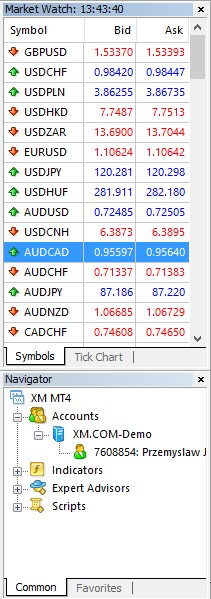
The Navigator window provides quick access to your Accounts, Indicators, Expert Advisors (EAs), and Scripts.

At the bottom, the Terminal window tracks your open positions, account history, and alerts.
5. Placing & Modifying Orders
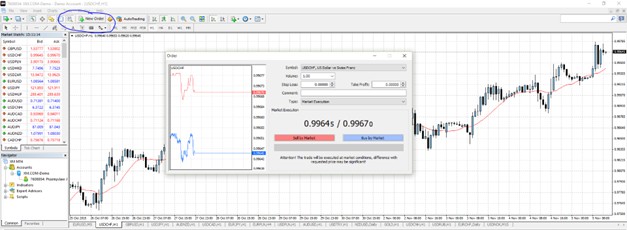
To open a trade, press F9 or click “New Order”. You can execute a Market Order (instant) or a Pending Order (Limit/Stop). Be sure to set your Volume (Lot size), Stop Loss, and Take Profit.
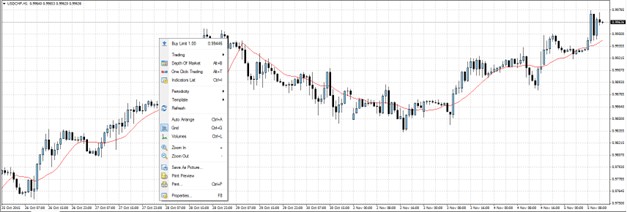
Once a trade is open, you can modify it by double-clicking the order line on the chart or in the Terminal. This allows you to adjust your Stop Loss or Take Profit levels dynamically.
6. Drawing Tools
MT4 includes a suite of drawing tools: vertical/horizontal lines, trendlines, channels, and Fibonacci retracements. These are accessed via the Insert menu or the toolbar.
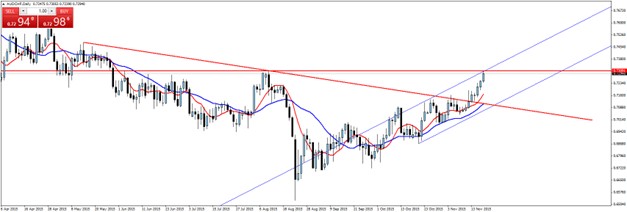
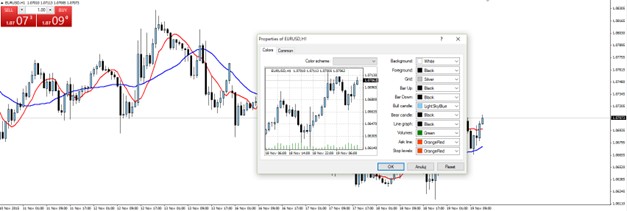
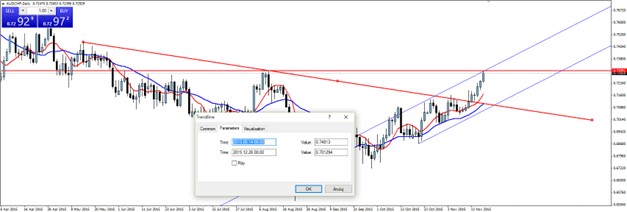
To edit an object, double-click to select it, then right-click for properties. You can change colors, thickness, and visibility across timeframes.
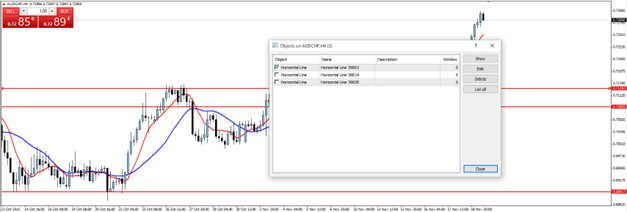
Use the Objects List (Ctrl+B) to manage all drawings on a chart efficiently.
7. Using Indicators
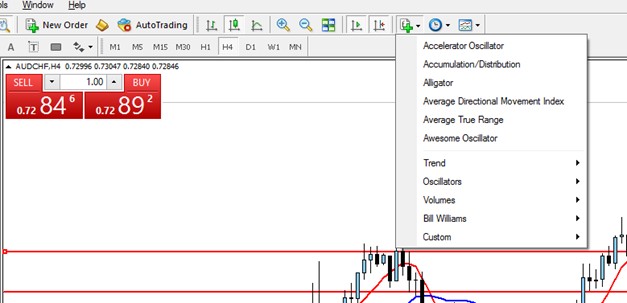
Indicators help smooth out price action and identify trends. MT4 comes with built-in trend, oscillator, and volume indicators. To add one, drag it from the Navigator onto your chart.
Master MT4 Today.
Download the platform and open a demo account to practice placing orders risk-free.
Frequently Asked Questions
Is MT4 free to use?
Yes, the MetaTrader 4 platform is free to download and use. However, you need a trading account (Demo or Live) with a broker to access market data.
Can I trade on a Mac?
Yes, but the native .exe file is for Windows. Most brokers provide a Mac-compatible version using Wine, or you can use the WebTrader version directly in your browser.
How do I add custom indicators?
Go to File → Open Data Folder, then navigate to MQL4 → Indicators. Paste your .ex4 or .mq4 files there and restart the platform.
⚠️ Disclaimer: The content of this article is strictly for informational purposes and does not constitute investment advice. FXRebate is a cashback and affiliate service, not a broker or fund manager; responsibility for trades and funds lies exclusively with the third-party broker. Trading with leverage involves high risks of capital loss. Partner links used do not generate additional costs for you.